
Documentation
Everything you need to get started with Excaliframe — Excalidraw sketches, Mermaid diagrams, and more.
1 Installation
- 1. Go to the Atlassian Marketplace and search for "Excaliframe"
- 2. Click "Get it now" and select your Confluence site
- 3. Approve the installation - Excaliframe requires no special permissions
- 4. You're ready to start drawing!
2 How to Use
Insert a Diagram
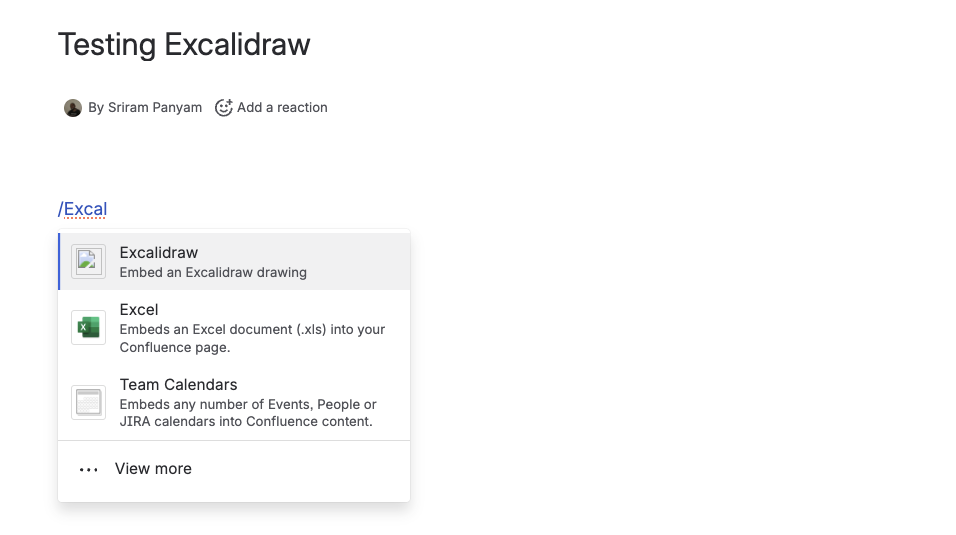
Open any Confluence page in edit mode and type /Excalidraw or /Mermaid to insert a new diagram. In the playground, click "New Drawing" and pick your diagram type.
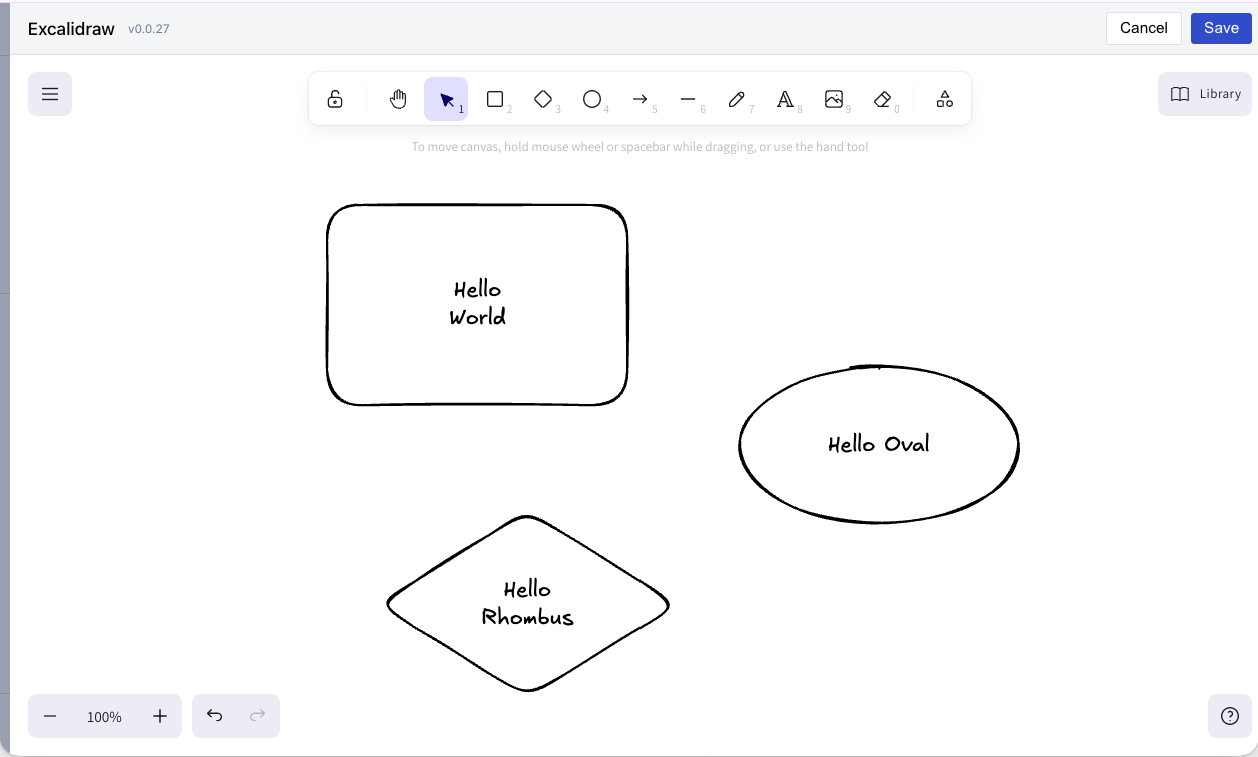
Edit Your Diagram
Excalidraw: Full drawing canvas with shapes, arrows, text, freehand drawing, and more.
Mermaid: Split-pane code editor — write Mermaid markup on the left, see the live-rendered diagram on the right.
Save and View
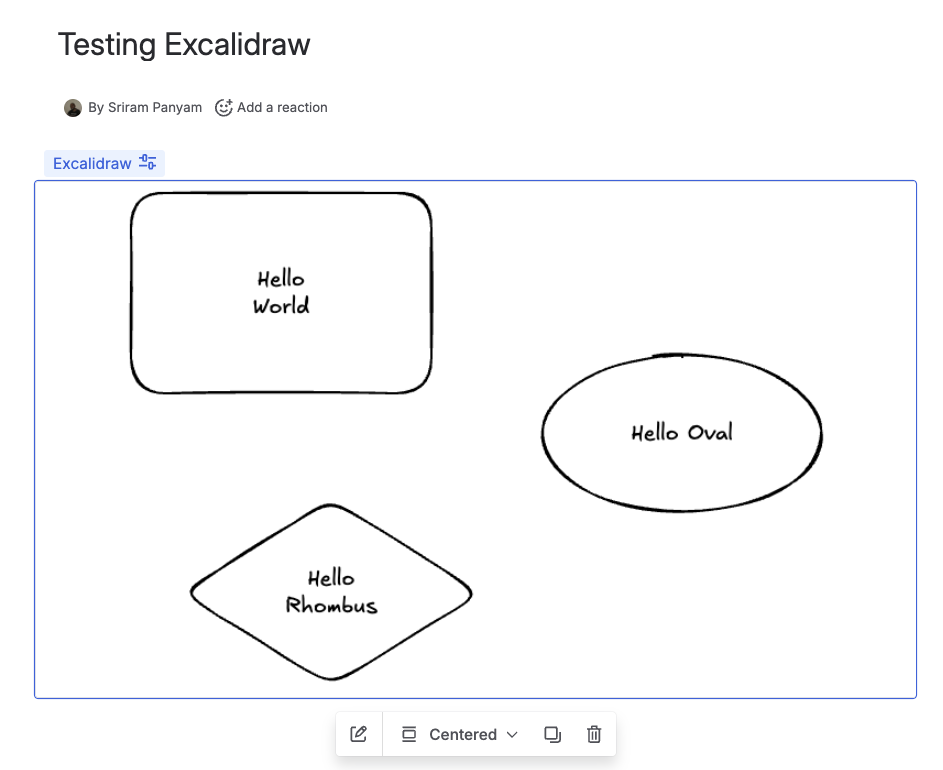
Click "Save" to embed your diagram in the page. It renders inline with your content. Click the diagram anytime to edit it again.
3 Tips & Tricks
-
Keyboard shortcuts: Press
1-9to quickly select tools - Pan canvas: Hold spacebar and drag, or use the hand tool
- Zoom: Use mouse wheel or pinch to zoom in/out
- Library: Click the Library button to access pre-made shapes and icons
-
Duplicate: Select elements and press
Ctrl/Cmd + D
? FAQ
Where is my data stored?
All your drawings are stored directly in Confluence, as part of your page content. Excaliframe doesn't send any data to external servers.
Is Excaliframe free?
Yes! Excaliframe is free and open source. There are no premium features or paid tiers.
Can I export my diagrams?
Yes. Excalidraw drawings can be exported as PNG, SVG, or native format via the editor menu. Mermaid diagrams render as SVG and can be saved as images.
Something's not working. How do I get help?
Please open an issue on GitHub with details about the problem. Include your browser and any error messages if possible.